> ## Documentation Index
> Fetch the complete documentation index at: https://traceroot.ai/docs/llms.txt
> Use this file to discover all available pages before exploring further.
# Introduction
> Group recurring agent issues into signals you can review and resolve
A signal is one problem your agent keeps running into. When a detector flags many traces for the same problem, TraceRoot groups them into one signal. You review and fix the problem once, then see how often it still happens.
Signals is an extension of [detectors](/docs/detectors/introduction), which judge traces; a signal follows one problem across many traces.
Signals work on every plan, including Free and self-hosted. Root cause analysis is included to run 30 analyses on Free, 100 per billing period on Starter and Pro (extra analyses are billed), and unlimited on Enterprise and self-hosted.
 ## How findings become signals
When a detector flags a trace, TraceRoot records a **finding**. Within about a minute, TraceRoot adds the finding to the detector's matching signal, or starts a new signal with a name and a **Summary**. A detector on a [TypeSafe AI](/docs/ai-agent/byok) model groups its findings by the category the model picked.
To stop grouping for a detector, turn off **Generate signals** in the **Signals** section of its settings. The detector still records findings, but TraceRoot does not group, analyze or announce them.
## Review signals
Open your project in [TraceRoot Cloud](https://app.traceroot.ai) and select **Signals** from the left nav. The list shows the newest signals first, filtered to **Open**. You can filter by status, by signal name or ID, or by detector name or ID. On the **Detectors** page, a detector's **Signals** count opens this list filtered to that detector. That count, and the list it opens, cover signals in every status.
The date range (**Last 7 days** by default) sets the period for each signal's count of affected traces. It changes only the trace counts, and the chart and trace list in a signal's panel. It never hides a signal.
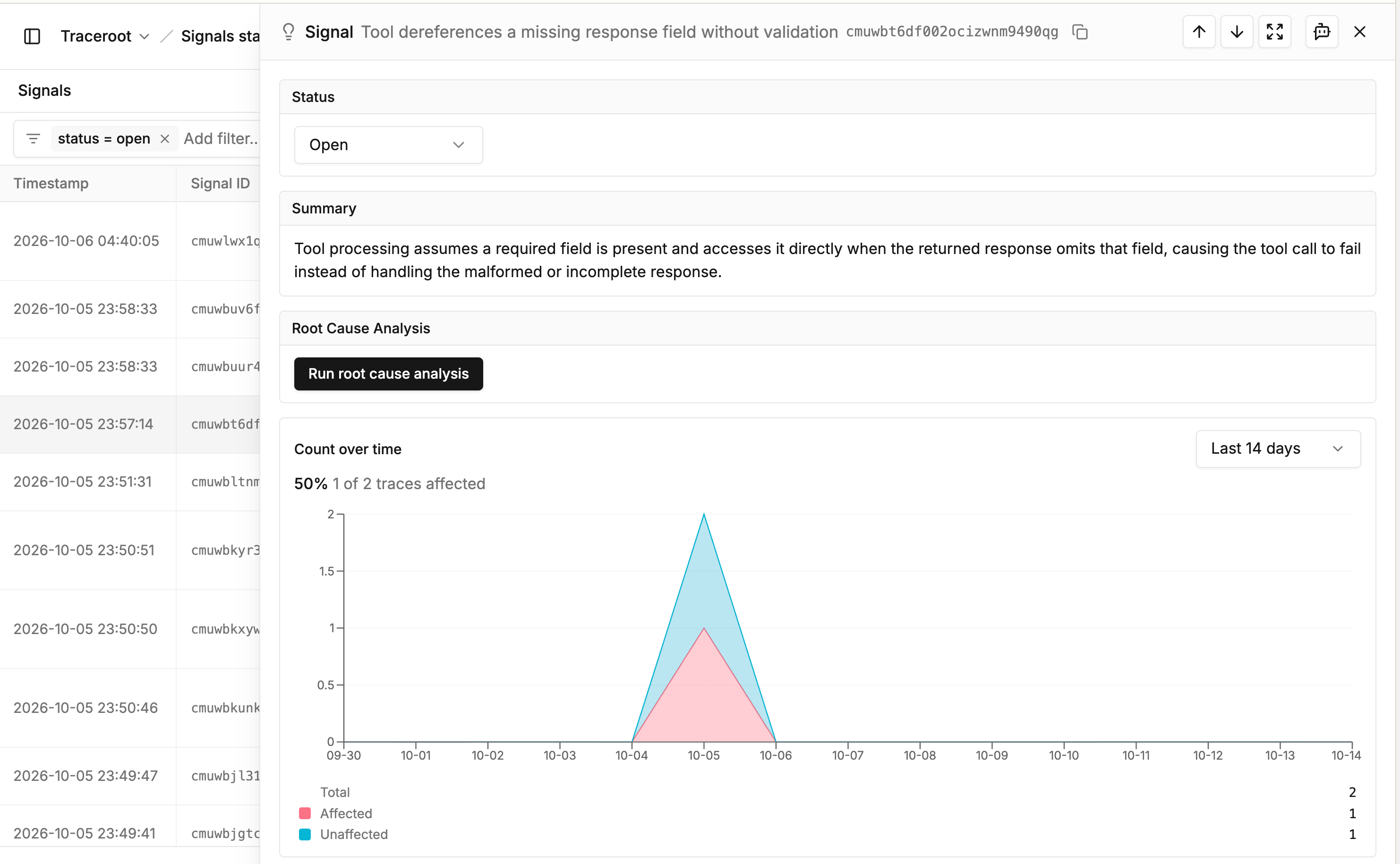
Select a signal to open its panel:
* **Status**: the signal's state, and the control to change it.
* **Summary**: what the signal covers.
* **Root Cause Analysis**: the latest analysis, or a **Run root cause analysis** button. When an analysis is shown, **Open in agent** opens it in the TraceRoot Agent for follow-up questions.
* **Count over time**: of the traces the detector checked, how many this signal affected (**Affected**) and how many it did not (**Unaffected**), over the date range.
* **Affected traces**: up to 10 recent traces from the date range. **View all** opens them on the Tracing page, filtered to the signal.
In notification emails and Slack messages, a signal's name links straight to its panel.
## Signal states
A signal is **Open**, **Resolved** or **Dismissed**. Change it with the **Status** control on its panel.
* **Open**: the problem needs attention. Every new signal starts here.
* **Resolved**: the problem is fixed. Pick a reason, such as **PR was merged**.
* **Dismissed**: the signal needs no action. Pick a reason, such as **Expected behavior**.
A signal keeps collecting new findings in every state. [Notifications](/docs/detectors/introduction#notifications) announce only new and reopened signals. A state changes as follows:
* A resolved signal reopens by itself when a finding arrives from a trace that started after you resolved it. The next notification lists it as **Reopened**.
* A dismissed signal stays dismissed.
* Setting a signal back to **Open** by hand sends no notification and starts no analysis.
## Root cause analysis
The [TraceRoot Agent](/docs/ai-agent/root-cause-analysis) reads one of the signal's traces and explains the cause. With [GitHub](/docs/ai-agent/github-integration) connected, it also reads the related code and recent commits. The detector's **Root cause analysis** setting decides when it runs:
* **Automatic**: on each new signal, and on a reopened signal when the last analysis is more than 24 hours old.
* **Manual**: only when you click **Run root cause analysis** on the signal's panel.
A run starts within about two minutes.
## Next steps
Set up the checks that flag problem traces.
Email and Slack digests for new and reopened signals.
This documentation is built and hosted on [Mintlify](https://mintlify.com), a developer documentation platform.
## How findings become signals
When a detector flags a trace, TraceRoot records a **finding**. Within about a minute, TraceRoot adds the finding to the detector's matching signal, or starts a new signal with a name and a **Summary**. A detector on a [TypeSafe AI](/docs/ai-agent/byok) model groups its findings by the category the model picked.
To stop grouping for a detector, turn off **Generate signals** in the **Signals** section of its settings. The detector still records findings, but TraceRoot does not group, analyze or announce them.
## Review signals
Open your project in [TraceRoot Cloud](https://app.traceroot.ai) and select **Signals** from the left nav. The list shows the newest signals first, filtered to **Open**. You can filter by status, by signal name or ID, or by detector name or ID. On the **Detectors** page, a detector's **Signals** count opens this list filtered to that detector. That count, and the list it opens, cover signals in every status.
The date range (**Last 7 days** by default) sets the period for each signal's count of affected traces. It changes only the trace counts, and the chart and trace list in a signal's panel. It never hides a signal.
Select a signal to open its panel:
* **Status**: the signal's state, and the control to change it.
* **Summary**: what the signal covers.
* **Root Cause Analysis**: the latest analysis, or a **Run root cause analysis** button. When an analysis is shown, **Open in agent** opens it in the TraceRoot Agent for follow-up questions.
* **Count over time**: of the traces the detector checked, how many this signal affected (**Affected**) and how many it did not (**Unaffected**), over the date range.
* **Affected traces**: up to 10 recent traces from the date range. **View all** opens them on the Tracing page, filtered to the signal.
In notification emails and Slack messages, a signal's name links straight to its panel.
## Signal states
A signal is **Open**, **Resolved** or **Dismissed**. Change it with the **Status** control on its panel.
* **Open**: the problem needs attention. Every new signal starts here.
* **Resolved**: the problem is fixed. Pick a reason, such as **PR was merged**.
* **Dismissed**: the signal needs no action. Pick a reason, such as **Expected behavior**.
A signal keeps collecting new findings in every state. [Notifications](/docs/detectors/introduction#notifications) announce only new and reopened signals. A state changes as follows:
* A resolved signal reopens by itself when a finding arrives from a trace that started after you resolved it. The next notification lists it as **Reopened**.
* A dismissed signal stays dismissed.
* Setting a signal back to **Open** by hand sends no notification and starts no analysis.
## Root cause analysis
The [TraceRoot Agent](/docs/ai-agent/root-cause-analysis) reads one of the signal's traces and explains the cause. With [GitHub](/docs/ai-agent/github-integration) connected, it also reads the related code and recent commits. The detector's **Root cause analysis** setting decides when it runs:
* **Automatic**: on each new signal, and on a reopened signal when the last analysis is more than 24 hours old.
* **Manual**: only when you click **Run root cause analysis** on the signal's panel.
A run starts within about two minutes.
## Next steps
Set up the checks that flag problem traces.
Email and Slack digests for new and reopened signals.
This documentation is built and hosted on [Mintlify](https://mintlify.com), a developer documentation platform.