

Connect Slack
- Open Settings then Integrations as a workspace admin.
- Click Connect and complete the OAuth flow in your Slack workspace.
- Pick the channel TraceRoot should post to.
A rule can be created before Slack is connected. If it breaches in that state, the notification is recorded as not delivered. Once you connect Slack or choose a channel, TraceRoot sends that notification on the rule’s next evaluation, as long as the rule is still in the same state.
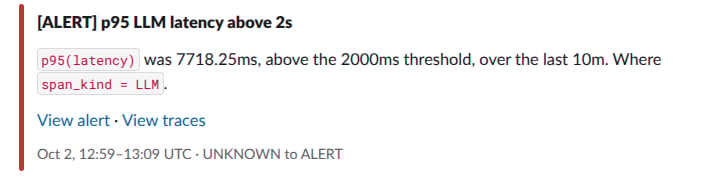
What a message contains
Every message has:- A header with the new severity and the rule’s name, such as
[ALERT] p95 LLM latency above 2s. - One sentence stating the measured value, the threshold and the window, followed by the rule’s filters.
- The evaluated time range in UTC and the transition, such as
OK to ALERT.
View alert opens the rule. View traces opens the trace list over the evaluated time window.
What View traces shows
The trace list can be broader than the spans the rule counted:- The alert evaluates spans, while the list shows traces that contain at least one matching span.
- The link carries
=filters on model, environment, status, span kind and span name, and metadata filters. Acontainsfilter on those fields and anis_rootfilter are not applied to the list.
When a notification is not delivered
If Slack is briefly unavailable or rate limits the request, TraceRoot retries for about 30 minutes. If the message still cannot be sent, the alert is rolled back so the next evaluation raises it again. Other failures need a change on your side. Click the rule’s badge in the Alerts list to see the reason:
A notification is never sent for a rule that was paused or deleted while the message was waiting to be delivered.
Next steps
Get Started
Create your first alert.
Rule Reference
No-data modes, renotify, severities and statuses.